![Logo Standard Medium.png]](https://help.exordo.com/hs-fs/hubfs/Logo%20Standard%20Medium.png?height=40&name=Logo%20Standard%20Medium.png)
Note: this feature is available in the Virtual hub.
Session codes and presentation codes help admins and delegates quickly identify and locate specific sessions and presentations, for example matching a presentation code to a number on a poster hall map.
A session needs its own Session Code filled in before it can have presentation codes. Session codes must be unique: no two sessions on your site can share one. Keep them short and memorable, for example Poster 1, Poster 2, and so on for a series of poster sessions.
Turning on presentation codes for all sessions:
A site-wide default controls whether new sessions get presentation codes automatically. To find it, open the Virtual Builder, then select Display > Build Options.

At the top of Build Options is the Default Session Presentation Code Setting.
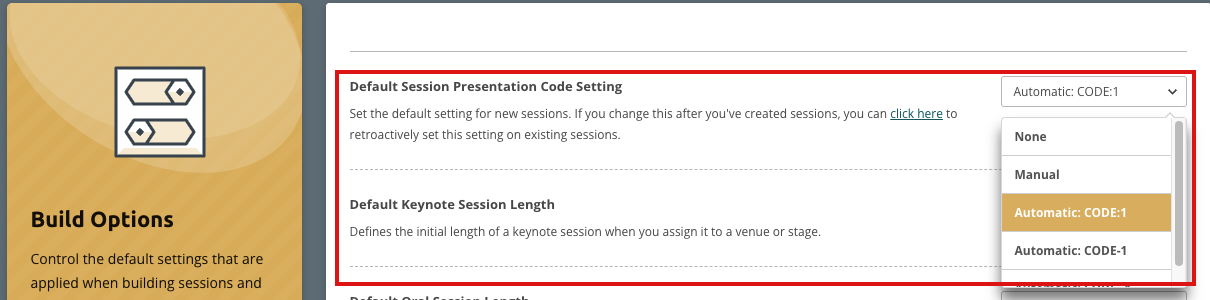
Your options are:
- None: the default setting. Ex Ordo adds no code to any presentation in the session;
- Manual: you choose and type in a code for each presentation yourself, one at a time;
- Automatic: Ex Ordo generates a code for every presentation for you, in whichever style you choose (see 'Automatic styles' below).
This setting only applies to new sessions created after you change it. Sessions you created earlier keep whatever setting was in place when you created them, unless you retroactively update them by selecting Click here on the Build Options page.

Adding a Session Code to a session:
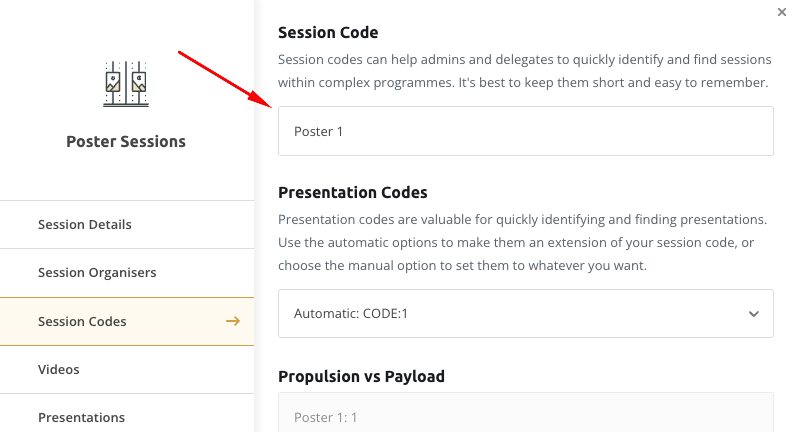
Head to the Content Studio in the Virtual Builder and open a session. Select the Session Codes tab and enter a session code.
Enabling or disabling presentation codes in an individual session:
First, open a specific session in the Content Studio and go to its Session Codes tab. Enter a session code if it does not have one already.
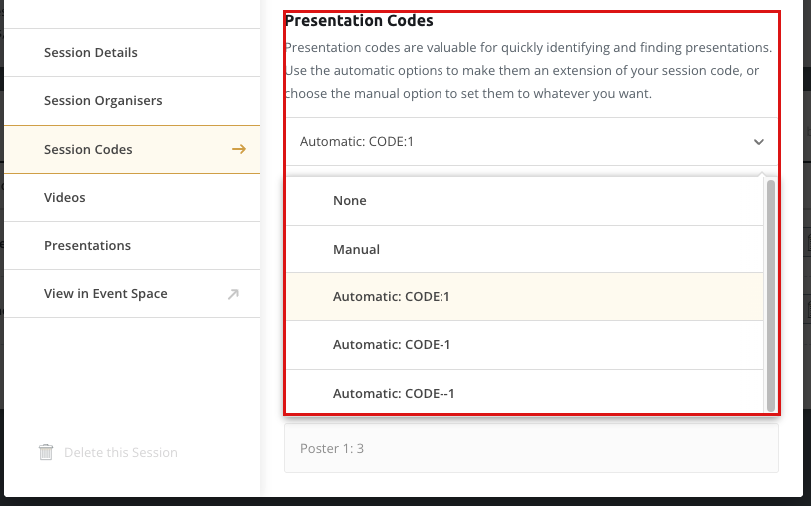
Once a session code exists, the Presentation Codes dropdown on the same tab gives you the same three choices as the global setting: None, Manual, or one of the Automatic styles.
Where presentation codes appear:
Once set, a presentation's code is added directly in front of its title in the Event space, mobile guide, and Virtual exports. For example, a presentation originally titled 'Propulsion vs Payload'. When using presentation codes, the title will appear as 'Poster 1:1 - Propulsion vs Payload.' The presentation's underlying title itself is never changed, only how it displays.
Presentation codes, when enabled, are visible everywhere the presentation itself is displayed, including:
- the Event Space: the Session page, the Presentation page, the Discover page, At a Glance page, and Event Space Search;
- exports: Excel, PDF, Word, and JSON exports;
- a connected mobile guide