![Logo Standard Medium.png]](https://help.exordo.com/hs-fs/hubfs/Logo%20Standard%20Medium.png?height=40&name=Logo%20Standard%20Medium.png)
You can use the Communication hub to send a reminder to all reviewers who have not yet completed all their reviews. There are two ways to send out a reminder message to the reviewing team.
You can use the Communication hub to send a reminder to all reviewers who have not yet completed their assigned reviews.
Using the Review Overview card on your dashboard:
- Go to your Ex Ordo dashboard
- Locate the Review Overview card
- You will see how many outstanding reviews there are - click Remind Reviewers or Message
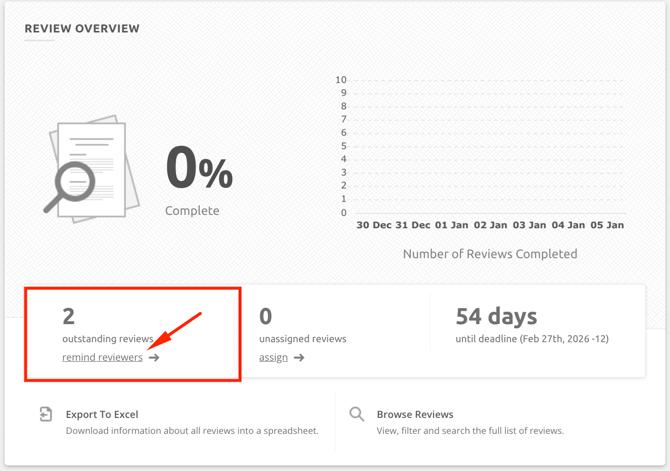
- You will be taken to the communication hub. You can filter down by track if you are a track chair on more than one track. Ensure you keep the Reviewer Status filter set to Have Outstanding Reviews.
- Click Next.
- You will see an email template. You can:
- add a subject line to the email
- modify the template, if needed.
- Scroll down to see additional options, including:
- uploading a file
- changing the From Name
- changing the Reply to email
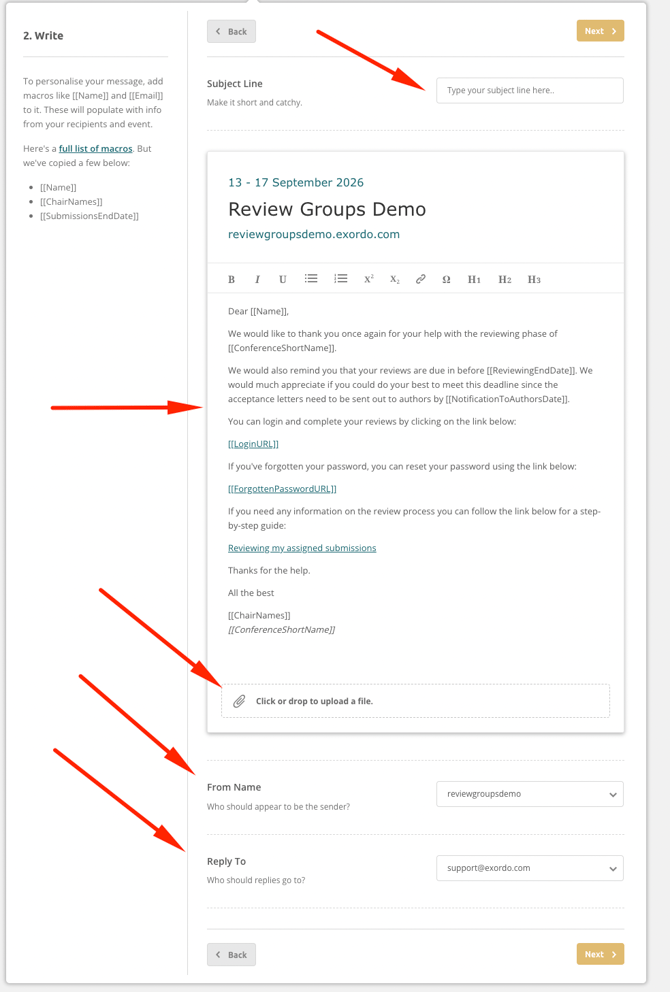
- Click Next when you are happy with your message.
- You will see a Test message. You can send it to your own inbox to see what it will look like.
- Click Back to make changes; or click Next.
- Click Send Message - That's it!
From the Communication hub:
- Click on the Communication hub at the top of the page
- Create a New Message
- Choose Reviewers as your recipient group
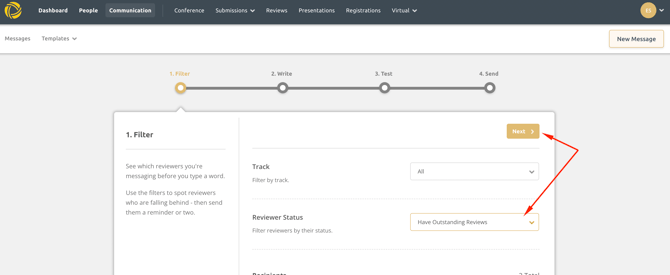
- Set the Reviewer Status filter to Have Outstanding Reviews.
- Optional: if you are a track chair on multiple tracks, you can send this message to reviewers on all tracks or one track only using the Tracks Filter.
- Click Next.
- You will see an email template. You can:
- add a subject line to the email
- modify the template, if needed.
- Scroll down to see additional options, including:
- uploading a file
- changing the From Name
- changing the Reply to email
- Click Next when you are happy with your message.
- You will see a Test message. You can send it to your own inbox to see what it will look like.
- Click Back to make changes; or click Next.
- Click Send Message - That's it!