![Logo Standard Medium.png]](https://help.exordo.com/hs-fs/hubfs/Logo%20Standard%20Medium.png?height=40&name=Logo%20Standard%20Medium.png)
Before submissions can be allocated to reviewers, you will need to configure the reviewing system to match your review process. There are 4 main steps to be completed before you can Allocate submissions to Reviewers:
1. Complete the Configure Review menu
2. Complete the Setup Marking Scheme menu
3. Complete the Configure Acceptance menu
4. Add Reviewers and either assign topics to them or invite them to pick their own topics
To get started, find your Setup Review card on your dashboard and click on the Configure Review Settings button.
Completing the Configure Review menu:
This is where you will add in your important dates and configure settings that impact the allocation.
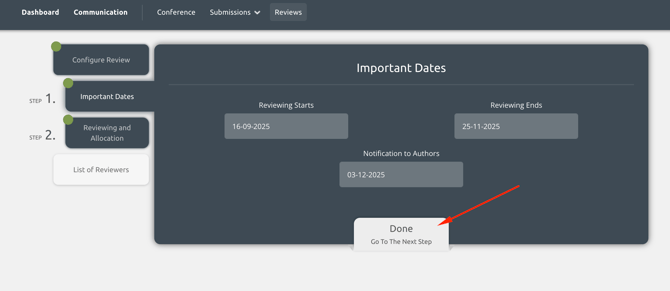
Step 1: Important Dates
You can set the dates for when you intend on starting your review, ending your reviewing and notifying authors of your decisions. These dates can be thought of as reminders for your review timeline, but they do not trigger any actions. You will take action to formally open the review, end the review and notify authors.
The Reviewing End Date is included in the email you sent to reviewers when opening the review. It is important that this date is correct to avoid confusion.
Step 2: Reviewing and Allocation
This step is very important. It is where you configure settings that will impact the allocation and reviewer experience.
Allow reviewers to Decline reviews?
You can give reviewers the option to decline reviews. If set to yes, reviewers will be able to decline a review in the system. Administrators and track chairs will be notified if a person declines a review. You can then assign the review to a different person.

Single or Double Blind Review:
You can choose to hold a:
-
single blind review: reviewers will see author names
-
double blind review: author names will be hidden from reviewers, unless the authors shared their names in places they should not have, such as in a file upload or abstract field.

Key numbers for the review:
Next, you will need to input a number for the following options:
- number of reviewers per submission: Do you want 2 reviewers to look at all submissions, 3 reviewers, 4?
- number of maximum reviews per reviewer: What is the maximum number of submission a single person should get?
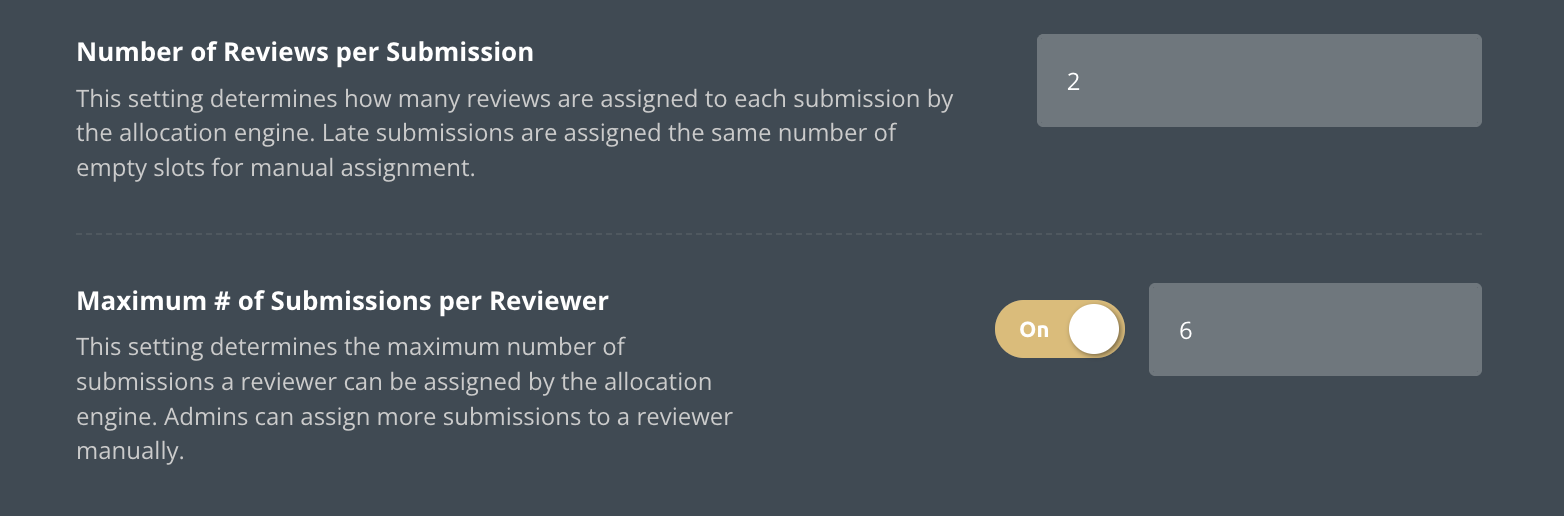
These numbers are very important for the allocation. Your allocation might have many empty slots if you do not carefully consider how many submissions and reviewers you have. For example:
- I have 30 reviewers.
- I have 100 submissions and I want 2 reviewers to look at each. This means there will be 200 reviewer assignments to fill.
- I want to ensure my 30 reviewers do have to review more than 5 submissions total.
- 30 reviewers X 5 submissions maximum = 150
- I do not have enough reviewers to support these settings. I would need to find more reviewers or change the numbers.
Topics can impact the allocation. It is important to ensure you have enough reviewers for each topic. If you have a single reviewer for topic 1 and 100 submissions with topic 1, the maximum number of submissions per reviewer would need to be 100 or unlimited; or you could find more reviewers to assist with topic 1.
Reviewer specific limits:
If enabled, reviewers can input the number of reviews they are willing to complete. The allocation will not assign more than a reviewer's limit. Administrators can manually assign reviews above a specific reviewer's limit, if needed.

Panels Allocation Setup (panel sites only):
If your site has the panels feature enabled, you have 3 choices for the allocation of your panel contributions. The 3 panel allocation models are:
- Convenor review: panel organisers that are listed as convenors on the panel review all contributions inside of their panel
- Same reviewers model: reviewers are assigned to panel contributions if they share topics, but the system ensures the same reviewers get all of the panel contributions to ensure they have the complete picture
- Different reviewers model: reviewers are assigned to review panel contributions based on topic match only, meaning different people may be assigned different contributions.

Nepotism settings:
Please indicate if you wish to prevent or allow nepotism. If you prevent nepotism, the system will not assign a reviewer to a submission when:
- the reviewer and an author share the same email domain (e.g., @gmail.com)
- the reviewer and author share the exact same affiliation
- the reviewer and author are connected on another submission, meaning they are co-authors on a different submission

That's it! After you click Done on this step, you will be taken to your dashboard. Feel free to take a break or jump right into the next review menu by clicking the Configure Marking Scheme Settings button from your Setup Review dashboard card.
Check out our article on setting up your marking scheme here.