![Logo Standard Medium.png]](https://help.exordo.com/hs-fs/hubfs/Logo%20Standard%20Medium.png?height=40&name=Logo%20Standard%20Medium.png)
If you are a review group chair and you think a submission doesn't belong to your review group, or it should be taken out of your group for any reason, you can remove it.
You can remove a submission from the review group both before and after the allocation is completed and reviewing has started.
Step 1) Access Reviews hub
Once you are logged in, click on the Reviews hub on your dashboard.

Step 2) View submissions
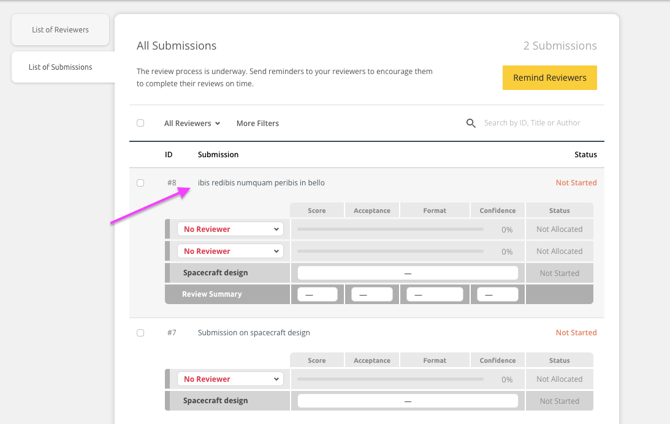
You will see the list of all the submissions in your review group. To check the content of each submission, click on the name to expand the view, as below:
Step 3) Click to remove
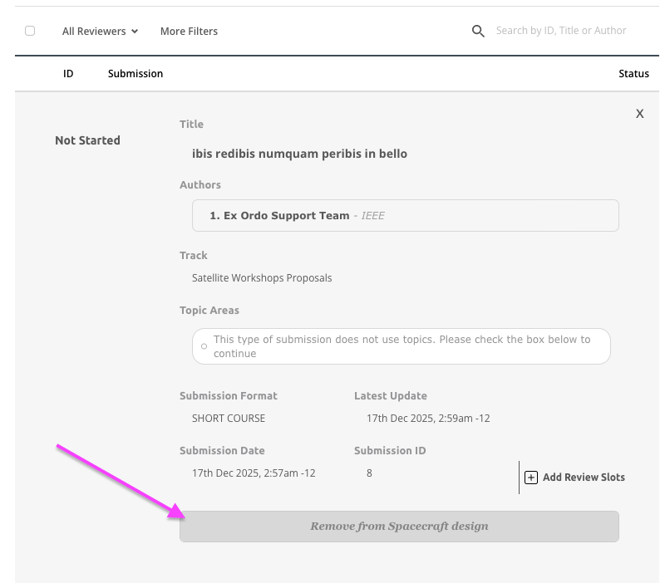
The submission will open up and, at the bottom, you will see an option to "Remove from Review Group". To remove the submission click on this button, as on the example below:
Step 4) Enter comment for chair
Before removal, a comment box will appear and you can leave a comment for the conference chair explaining the reason for removing this submission from your review group. When you are happy to complete the action, click on the Remove button as on the picture below:
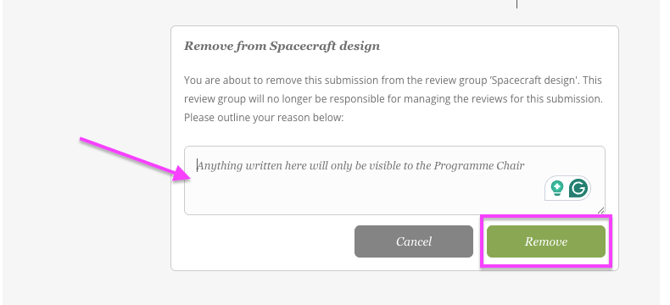
After performing this action, the submission is immediately removed from your review group.
You can also remove the submission from your review group after the review has started. If reviewers are already assigned to a submission and the review is in progress, removal of the submission will erase the in progress reviews. Reviewers will be sent an email to notify them that the review has been removed.