![Logo Standard Medium.png]](https://help.exordo.com/hs-fs/hubfs/Logo%20Standard%20Medium.png?height=40&name=Logo%20Standard%20Medium.png)
Ex Ordo Communication hub allows you to contact different groups of users from the system. In the steps below we will walk you through the process.
Select Communication hub from the menu bar:

To create an an email click on New Message
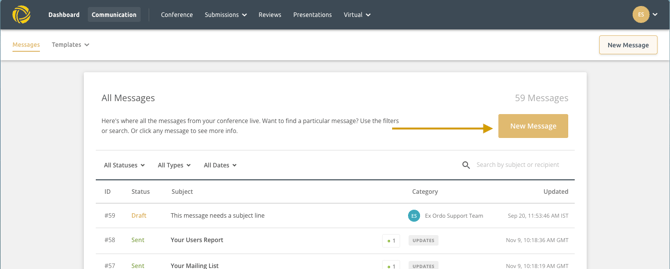
You will be taken through the workflow with the steps below:
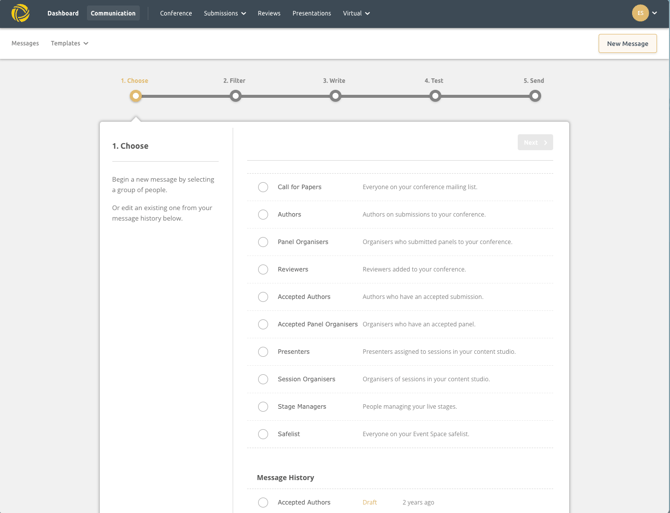
Step 1) Choose your template
Choose the group of people to send an email to:
Step 2) Filter
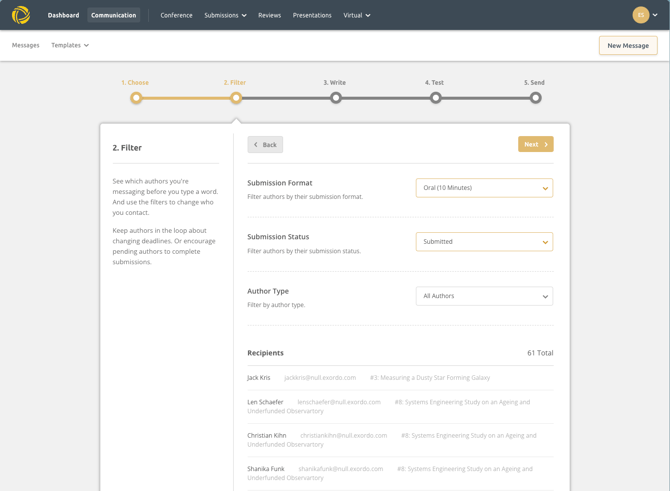
You can filter and target a specific group of people.
For example, All Authors with submissions format Oral (10 minutes) and Submission status submitted
Or All Reviewers that have outstanding Reviews:
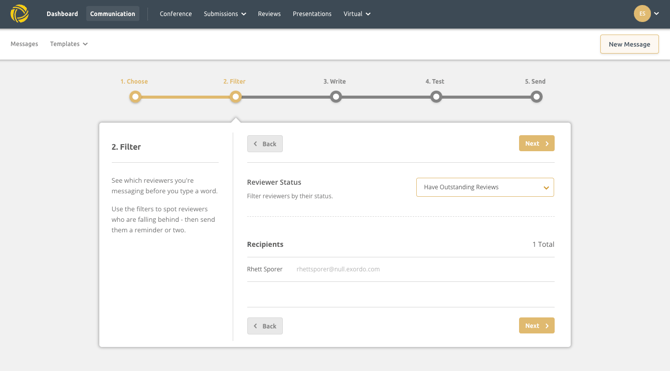
Or If you are sending a Call for Papers email type, you can copy and paste your recipient's list in the box as below:
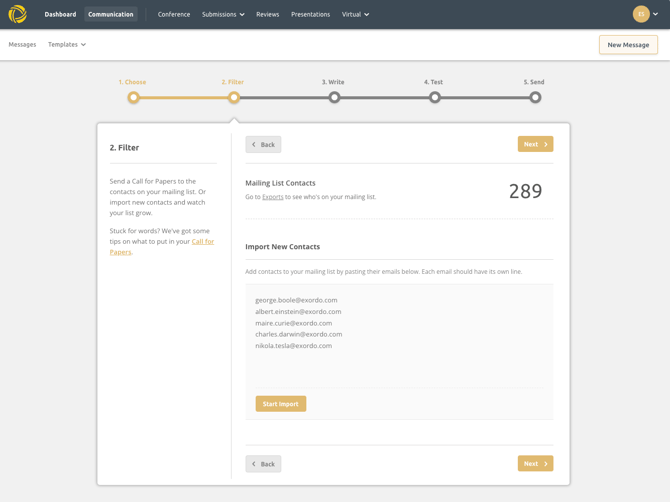
Step 3) Write
Every email needs a subject line and content.
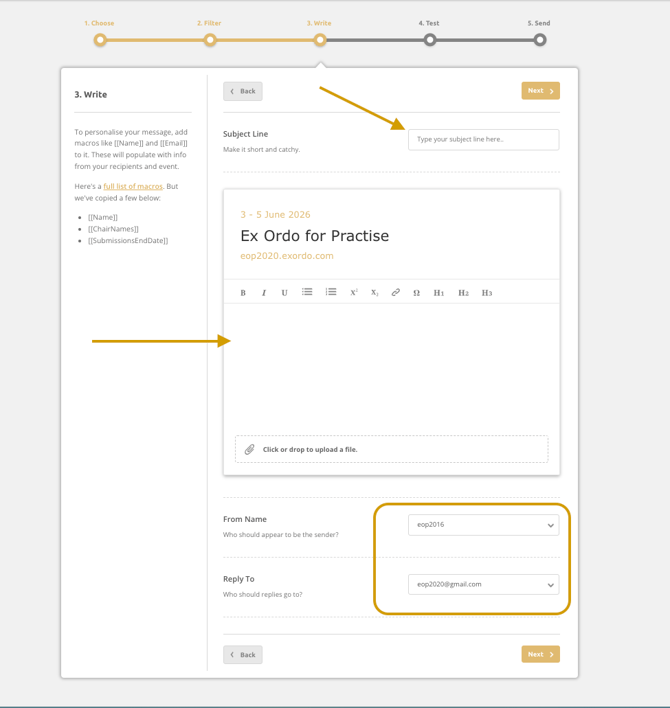
From Name field defines how you would like this message to appear in someone's inbox.
Reply To is taking your main conference contact as a default. You can change this, so replies will go to you or any other chair or assistant.
Step 4) Test
Check and preview or send a test message to yourself or any other system administrator
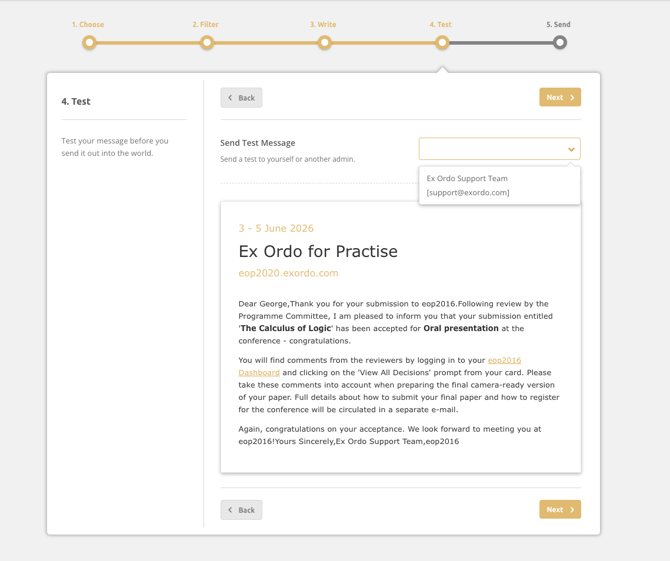
When using [[Name]] macro, the test email you send to yourself will take the name of the first recipient from the list (not your name).
Step 5) Confirm and Send
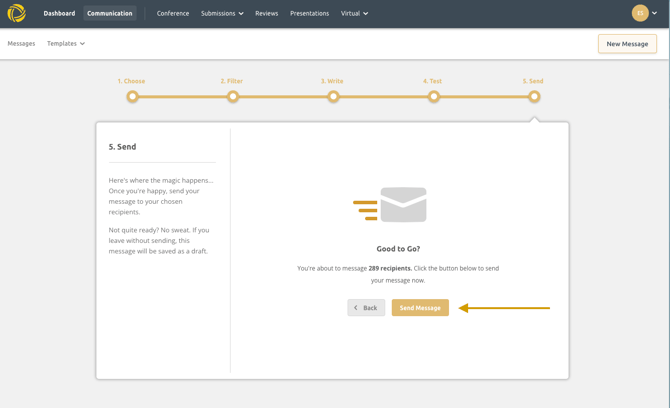
In this final step, hit Send Email. The system will show the number of recipients you are targeting with this email. If you're not ready, don't worry. You can navigate away and it will be saved as a draft for you to access again