![Logo Standard Medium.png]](https://help.exordo.com/hs-fs/hubfs/Logo%20Standard%20Medium.png?height=40&name=Logo%20Standard%20Medium.png)
What is the final submissions hub?
The final submissions hub can be used to collect new content from authors, such as final papers. It also allows authors to edit content they submitted before the review. If opened, authors can always edit:
-
The submission title
-
Author details such as their names, emails, affiliations, etc.
You can also ask for new content in the final submissions hub. For example, you may ask authors for a copyright transfer, you may have a new question to ask authors or you may request a final paper here. Check out the article below for more details.
Configuring the Final Submissions hub:
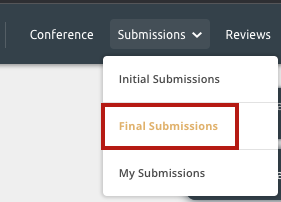
Administrators can configure these settings by clicking on the Submissions drop-down menu at the top of the website and opening the Final Submissions hub.
Step 1: Important Dates
This step allows you to choose when the final submissions hub will be open and close. These are hard deadlines. Authors cannot submit new content or edit existing content before and after these dates.
Admins can edit content before and after these dates if needed. Admins can also change these dates at any time.
Step 2: Questions Tab
There are a number of options to choose from here, including:
- Asking authors for source files
- Requiring authors to respond to reviewers feedback. If enabled, the system generates a text box for each reviewer's comment. Authors can then follow up on the comments reviewers have left. This is particularly useful where their acceptance was conditional upon them acting on reviewer feedback.
- Allowing or preventing authors from changing the order in which they are listed. If set to Yes, authors can modify the order in which they are listed on a submission. If set to no, authors change the order in which authors appear on a submission. Conference administrators can always change the author order, regardless of this setting.
- Allowing or preventing authors from withdrawing their submission. If set to yes, any author on a submission can withdraw their own work. If set to no, only conference administrators can withdraw a submission in the final submissions hub.
Step 3: Copyright disclaimer
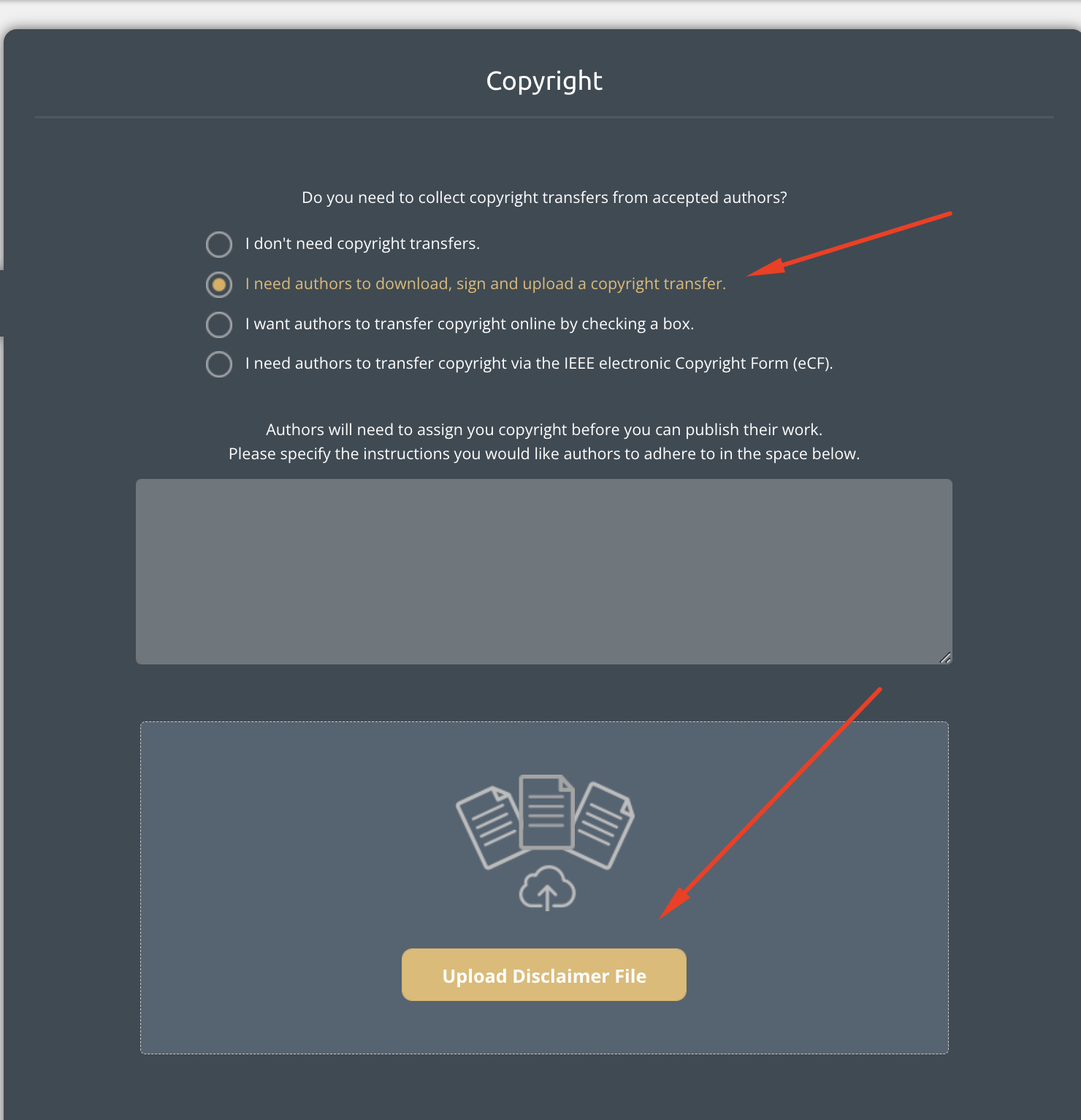
You may also want to ask the author to transfer the copyright over to you so that you can publish their work in conference materials. You can choose to ask them to do this in three ways:
- Download a document, sign it, scan it and upload it
- Tick a check box to accept your copyright transfer terms
- If you are an IEEE conference, check out this article for more information on IEEE copyright transfers: Getting copyright from accepted submissions
Don't need copyright transfers? No problem! Set this step to I don't need copyright transfers.
Using the copyright step for CPD credits:
You can use the copyright step to collect information you need to issue CPD credits to an author who has been accepted. Admins upload the CPD form where the copyright document would have been uploaded. The authors can then download this form, scan it and upload it back into the system. Admins can then bulk download all the forms in the Conference hub > Uploaded Files tab.
Step 4: Abstract Sections
You will see the abstract section(s) that were added in the initial submissions hub here. Keeping them enabled will allow authors to modify the abstract content they provided before the review. You can:
- Add new abstract sections
- Disable abstract sections
- If disabled, authors will not be able to see or edit their abstracts. You can re-enable them later so they are visible in the schedule.
Step 5: Author Questions
On the Author Question tab, you will see any author questions you added in the initial submissions hub. You can now:
- disable questions if you do not want authors to modify their answers
- add new questions for authors
More information on adding these fields can be found here.
Step 6: Additional Information
On the Additional Information tab, you will see any submission questions you added in the initial submissions hub. You can now:
- disable questions if you do not want authors to modify their answers
- add new questions for authors
More information on adding these fields can be found here.
Step 7: File Formats
You may need to collect a file from accepted authors, such as a final paper. If enabled, all authors will be required to upload a file to complete this workflow.
It may be important for you to share some formatting guidelines with your authors (e.g., do not include page numbers, use double-spacing, etc.). We have instructions here on how to use the simple text editor to share file formatting guidelines with authors.
Warning! Want the file to appear in your Ex Ordo book? You must collect PDFs.
Be sure to tell authors not to add any information in the header or footer fields. The Ex Ordo book script will add page numbers and header text.
Step 8: Guide for Authors
Finally, as with the initial submission process, guidance text will be displayed to the accepted authors when they begin the process of uploading their final drafts. You should include any relevant information, especially deadlines and any file formatting instructions.
You can also use the formatting options in the Ex Ordo text editor.